Overview
Once a personal injury case is opened in Lextiff, the Client and Detail tabs serve as your central record for plaintiff demographics, communication preferences, multi-plaintiff relationships, incident facts, and legal team assignments. Keeping these fields structured ensures that document templates, e-signature packages, and client portal updates stay automatically synchronized.
Step 1: Complete the Client Profile & Communication Preferences
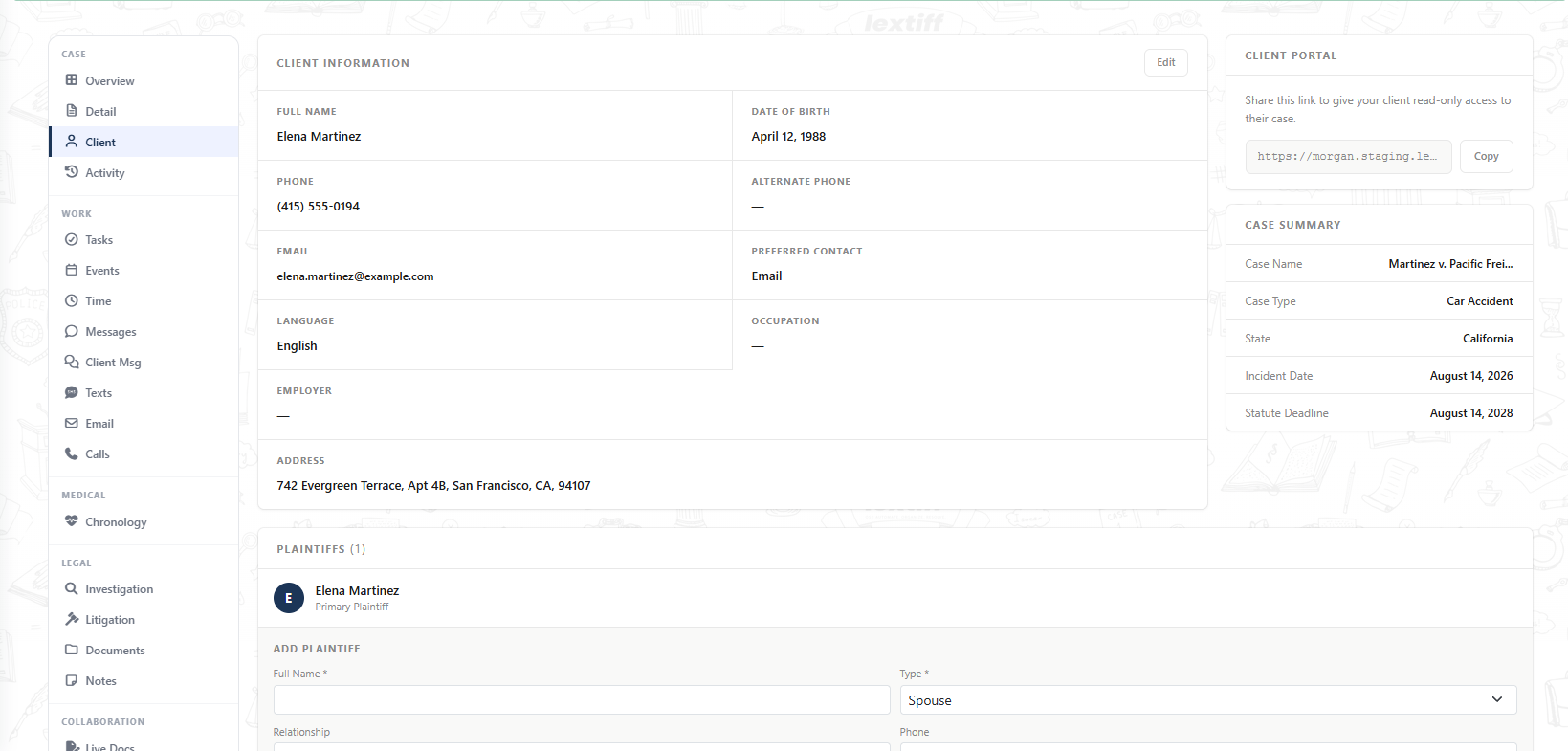
- Inside your active case workspace, select Client under the CASE menu on the left sidebar.
- Click Edit in the top-right corner of the Client Information card.
- Enter the client's Date of Birth, Phone, Email, Preferred Contact method (Email, Phone, or SMS), Language, and full mailing address (e.g., 742 Evergreen Terrace, Apt 4B, San Francisco, CA 94107).
- Check Minor Client if the plaintiff is under 18 so guardian and court-approval workflows are flagged automatically.
- Click Save Changes.
Step 2: Share the Read-Only Client Portal & Add Co-Plaintiffs
- Client Portal Link: On the right-hand panel of the Client tab, copy the unique Client Portal URL to share read-only case status updates with your client—reducing inbound status check calls.
- Multi-Plaintiff Tracking: For motor vehicle collisions or wrongful death claims involving multiple family members, use the Add Plaintiff section at the bottom of the screen to link spouses, children, or additional injured parties under a single consolidated matter.
Step 3: Record Incident Facts & Liability Summary
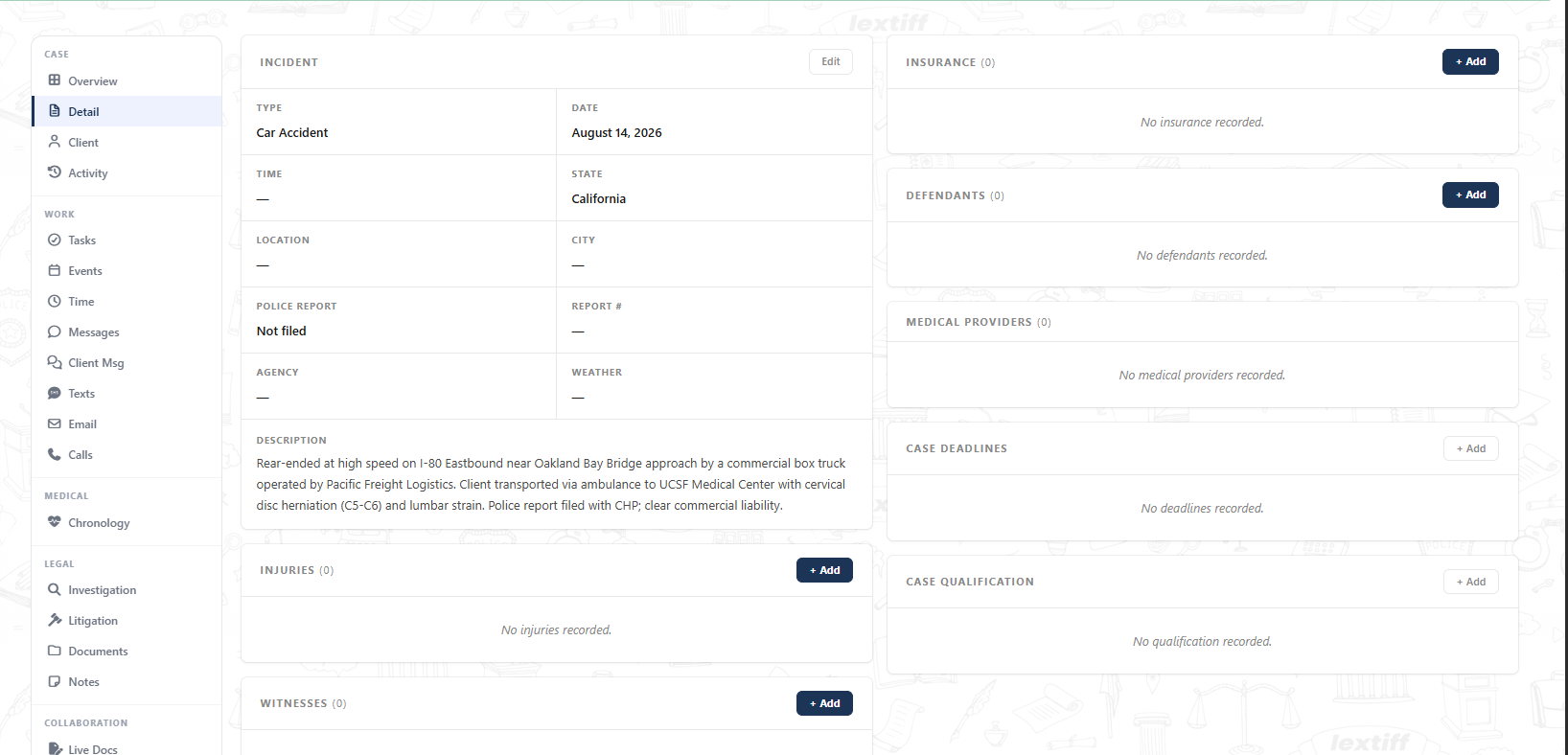
- Navigate to Detail under the CASE menu on the left sidebar.
- Click Edit on the Incident card to document the exact collision time, location, city, weather conditions, and whether a Police Report was filed (along with the investigating agency and report number).
- Enter a clear factual narrative in the Description field (e.g., commercial rear-end collision details, emergency transport, and initial injuries) so every attorney and paralegal on the file sees the liability summary immediately on the Overview dashboard.
- Click Save.
Step 4: Assign the Lead Attorney & Case Team
- Return to the Overview tab and scroll to the Assignment card in the bottom-right column.
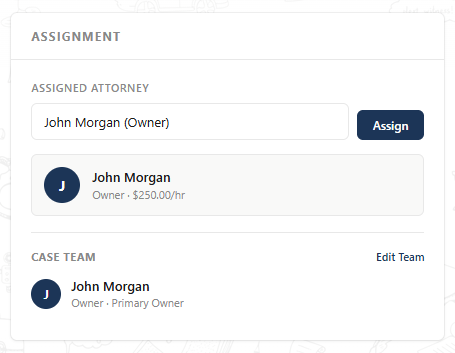
- Select the lead counsel from the Assigned Attorney dropdown (for example, John Morgan (Owner)) and click Assign.
- Click Edit Team to add supporting associate attorneys, paralegals, or case managers so task notifications and billing rates are tracked accurately across the firm.